Troubleshooting
Slow execution
If you notice some slowness in execution of commands or in launching of the software, check following points:
- The size and dimensions of your pictures:
- Activate Works.
- Display the records one by one and see description of images (see figure below).
- JPEG - is the picture format, 1032 x 840 pixels - is width and height, 72 dpi - is the resolution, 164 Kb - is the size in kilobytes.
- You can find more information about pictures by clicking the Info button (see figure below). Here, you can see if you have imported the full images or if they are simply stored as a reference (see the chapter about the preparation of the images).
- The speed of your Internet connection if you access vGallery remotely. If you can, avoid Wi-Fi and connect to the network through an Ethernet cable or a PLC adapter.
- The general condition of your computer. Sometimes it gets some "tiredness" after a couple of hours of work without interruption. The reason for slowness can be little RAM memory. In this case, a memory upgrade may be a solution. Another reason can be that your hard drive become fragmented. Disk defragmentation and optimization could be necessary. Windows XP includes disk defragmenter utility. As to other operating systems, you will have to use a specialized utility tool like Diskeeper for Windows or TechTool for Mac OS.

Important: If you notice some unexpected or unexplained behavior, relaunch vGallery or restart your computer if necessary. If the problems persist, please contact us for further advice (Help -> Send us your Feedback).
Print Issues
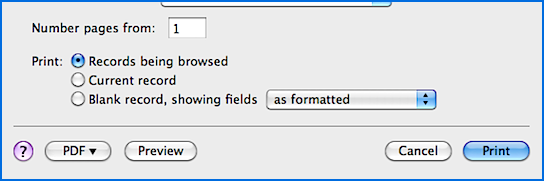
If the printed page does not match what you see during the preview, check that Records being browsed is selected in the print settings (see figure below).
Corrupted database
It can occur (often because of a power cut or hardware failure) that vGallery informs that its database is corrupted and cannot be opened. Since the version 1.2.4, vGallery attempts to recover the database automatically. You just have to wait until the end of the operation that can last (depending on the size of your database) several minutes. If successfully recovered, vGallery renames the corrupted file database Old.vg1 and performs the opening of the restored database. If the recovery fails try the manual recovery, following the steps described in Restoring data from backup.
Missing database
If you accidentally moved the database launcher.vg1 (since version 1.2.4 of vGallery) or database.vg1 from its original location, vGallery will prompt you to localise the missing database. Click Cancel and replace the files to their original folder (Applications/vGallery on Mac Os or My Documents\vGallery on Windows).
If you have accidentally deleted database.vg1, you can recover it from the backed up database. Open vGallery/Backup folder and copy or move the database.vg1 to the main vGallery folder. A backup of the database is executed automatically every time you launch vGallery.
Backup or update issue under Windows Vista and 7 if vGallery is installed into Program Files directory
In Windows Vista and Windows 7, Microsoft has implemented rigorous security measures using UAC (User Account Control) system and Virtualization to protect files and directories. Virtualization of system directories is managed by access rights; normal user has no write access to Program Files directory. When you launch vGallery, Vista moves the vGallery database to a directory managed by its Virtualization system. vGallery seems to work correctly, but if you are updating or replacing its database, it is still the old version that will be launched. To solve this problem, disable UAC via control Panel:
- Launch vGallery.
- Choose File -> Save a Copy as... from the menu bar.
- Choose the name and location for the new copy and click Save.
- Go to Start -> Control Panel -> User Accounts. In the Turn on User Account Control (UAC) to make your computer more secure, click to unselect the Use User Account Control (UAC) to help protect your computer. Click OK and reboot your computer.
- Launch vGallery and run an import action from File -> Import Records..., Module name: All modules, Source: vGallery - backup (All modules).
- Click OK, then Continue and select the copy you have saved in the step 3. Click Choose to start importing data from the saved copy.
If you do not want to disable the UAC security system, you must reinstall vGallery in another directory than Program Files:
- Launch vGallery.
- Choose File -> Save a Copy as... from the menu bar.
- Choose the name and location for the new copy and click Save.
- Uninstall vGallery (see the chapter Installing and launching).
- Reinstall it by choosing a different directory than C:/Program Files/.
- Launch vGallery and run an import action from File -> Import Records..., Module name: All modules, Source: vGallery - backup (All modules).
- Click OK, then Continue and select the copy you have saved in the step 3.
- Click Choose to start importing data from the saved copy.