Backing up and restoring
Important: Save the data you enter into vGallery as often as possible. You are never immune to error, a hard disk failure or a power cut that might corrupt the database.
Making a copy of the database
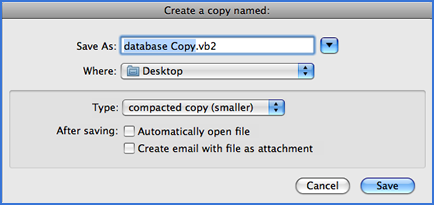
- Choose File -> Make a copy... from the menu bar.
- Point to Save as: and set a name of the copy, or leave the proposed name unchanged.
- In Where: specify a location to save the copy.
- In Type: choose Compacted copy (smaller) then click Save (see figure below).
Restoring the records of the current database
Performing a restoration procedure erases the current data and replace them by the backed up data. The restoration can be done in two ways:
- by importing the records,
- by replacing physically the file of the current database if it is corrupted.
Import procedure is detailed in the Importing Data chapter. It is suitable for use in the majority of the situations; accidental deleting of information or records, installation of a new system, buying a new computer, etc. But, if in very rare cases, vGallery prompts you that its database is corrupted and if the automatic restore process fails, you should replace it by a backed up copy:
- Find vGallery v2 folder on your computer. vGallery is installed by default in C:\Documents and Settings\Your account name\My documents (Windows XP), or in C:\Users\Your account name\Documents (Windows Vista and higher*) or in Macintosh HD/Applications (Mac OS). If this is not the case, you've probably indicated another location during installation.
- After finding the vGallery folder, double-click it to open it.
- Then, locate the saved copy of the database that should be named database Copy.vg2 or with the name you have set at backup (see above).
- Rename the saved database file (database Copy.etc.vg2) to database.vg2 (take care not to remove extension .vg2 if your computer is configured to show file extensions).
- Drag the saved file to vGallery v2 folder. The system will attempt to notify you that a file with that name already exists and asks if you want to replace it.
- Click Replace.
* If your operating system is Windows Vista and higher, please see the Troubleshooting chapter about the UAC security system.
Backup reminders
All 10 launches, vGallery prompts you at the time of closing, to make a copy of its database. The number 10 of launches is editable. You can also disable this warning. If you want to enable it again, go to Records -> Preferences, click the Options tab then click the General tab and here check Enable backup reminders.
Important: If vGallery is hosted on a FileMaker Server, the backups should be scheduled by the server administrator. If vGallery is hosted on Zoftware's server you have the possibility to manually backup your database by choosing File -> Save a Copy...
The copy saved by this action is the daily backup, automatically recorded by the server (between 23 and 24 pm). This is due to the inability of the server to save databases currently in use elsewhere than on its own hard drive.