Importing data
vGallery supports the following file formats:
- BASIC (.bas) - Used by Microsoft BASIC.
- CSV (.csv or .txt) - text encoded as Comma separated values, used in most spreadsheets such as Microsoft Excel or by most database management systems.
- DBF dBase III and IV (.dbf) - dBase II format is not supported. This format allows you to keep fields labels.
- DIF (.dif) - used in most spreadsheets such as Microsoft Excel. This format allows you to keep fields labels.
- FileMaker Pro (.fp7) - This format allows you to keep fields labels.
- WK1/WKS Lotus 1-2-3 (.wk1 or .wks) - Used with Lotus 1-2-3 and other spreadsheets.
- Merge (.mer) - Export format recommended to create sample letters in a text editor. This format allows you to keep fields labels.
- SYLK (.slk) - Used in most spreadsheets such as Microsoft Excel.
- Tab Separated Value (.tab or .txt) - Used with most applications. If you do not know which format to use, start by trying it.
- XML (.xml) - Apart XML files, you can import the XML data from an HTTP request.
Address Book and Works modules only are able to receive imported data.
Import data from a text file into Address Book
- Choose File > Import Records... from the menu bar.
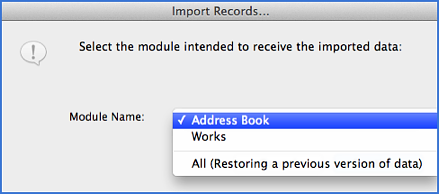
- Select Address Book in Module Name: (see figure 1 below) then click Continue.
- In Source: select File then click Continue.
- Search the source file that contains the data to be imported then click Open.
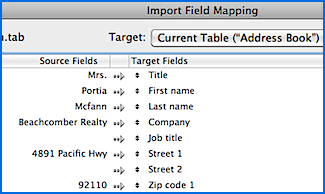
- Import Field Mapping dialog box (see figure 2 below) shows in two columns source and target fields. The target fields are the vGallery module fields that should receive the data.
- Map vGallery module fields to their corresponding source file fields.
- Click Import.
Import a folder of images in Works
If you have several images to insert, it is perhaps better to import them in one operation. This action will create a new record for each image. You should then complete the other information manually, artist name, title of work, etc.
- Go to File -> Import Records... on the menu bar.
- Set Module Name to Works then click Continue.
- Set Source to Folder and click Continue.
- Navigate to your image folder and click the button Choose.
Importing from vGallery backed up database
- Choose File -> Import Records... from the menu bar.
- In the dialog box Import Records... , select All (Restoring a previous version of data) from the popup menu Module Name then click Continue.
- In the nex dialog box set Source to vGallery - backup then click Continue.
- Navigate to your backed up database and click the button Choose.
Very important: All existing data will be replaced by the backup.
Import from vGallery previous version
If you want to upgrade your copy of vGallery, import data from the old version does not happen automatically. You must, as a first step, converting the old database (database.vg1) using FileMaker Pro 12. You can download a 30-day trial on FileMaker website. The conversion is done by simply dragging the database.vg1 file on FileMaker Pro 12 icon. You could then import the old data in the new version of vGallery. To do this:
- Choose File -> Import Records... from the menu bar.
- In the dialog box Import Records... , select All (Restoring a previous version of data) from the popup menu Module Name then click Continue.
- In the nex dialog box set Source to vGallery 1 (Converted Old Version) then click Continue.
- Navigate to your converted old database and click the button Choose.