Share vGallery on a network
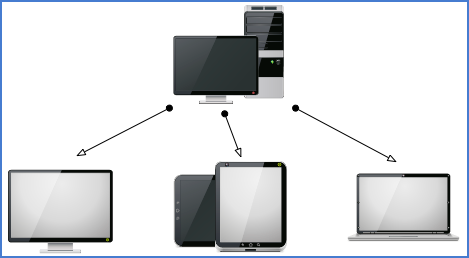
vGallery can be shared by multiple workstations at the same time over a local or remote network. The computer that physically hosts vGallery, functions as a server, and the other computers and devices (Mac, PC, iPad, iPhone), as clients.
Each computer, the server and clients, needs to be equipped with FileMaker Pro 12 or higher, except mobile devices that need FileMaker Go (see the chapter Installing and launching about the installation of vGallery on iPad). To share vGallery on the network, follow these steps:
- Launch FileMaker Pro on the server.
- Go to File -> Open... in the menu bar, and browse to the file named database.vg2, inside the folder vGallery v2 (see the chapter Installing and Launching for more information about the default location of vGallery).
- Go to File -> Sharing -> FileMaker Network... and enable file sharing.
- Go to File -> Send -> Link to create an e-mail with the path of the database which should be of type fmp://192.168.1.2/database.vb2. Send this e-mail to other users who need remotely access to vGallery.
To allow other computers access vGallery, the server must be available and connected.
- Install FileMaker Pro 12 on the computer that should connect to vGallery. vGallery must imperatively be open on the server.
- Retrieve email sent in step 4 of the previous step-by-step.
- In the email, click the link (fmp://...). FileMaker should open and connect to vGallery.
- Under Mac OS, drag the link to Desktop to create a launcher that you can rename vGallery.
- Under Windows, right click on the desktop and choose New -> Shortcut. In the field Enter item location paste the link previously created and click Next to create the launcher.
If, for any reason, the link does not work, try the following:
- Go to File -> Open Remote...
- In the Open remote file dialog box, select Local Hosts from the drop-down menu.
- Under Hosts, click the server name that should be composed of the computer's name and its active IP address, of type MacPro (192.168.1.2).
- Select database and click Open.
- If no host is found, make sure you are connected to the same network as the server that the server is running and vGallery is launched using FileMaker.
Note: For detailed information about file sharing, you can refer to FileMaker built-in Help which is very rich on the subject.