Interface and navigation
Main Menu
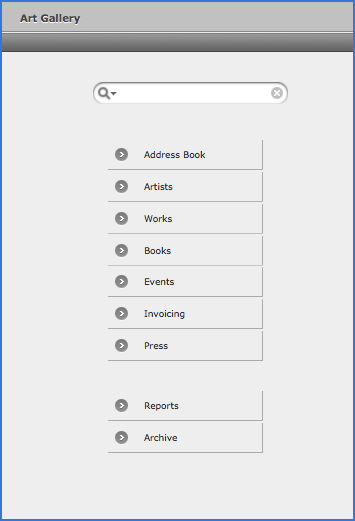
The main menu gives you access to all modules. The order of the menus can be changed in the User Settings panel. Unused menus may be hidden.
The quick search field allows you to look for specific information before activating the wanted module. All search terms are saved in a history list  .
.
Buttons and tabs
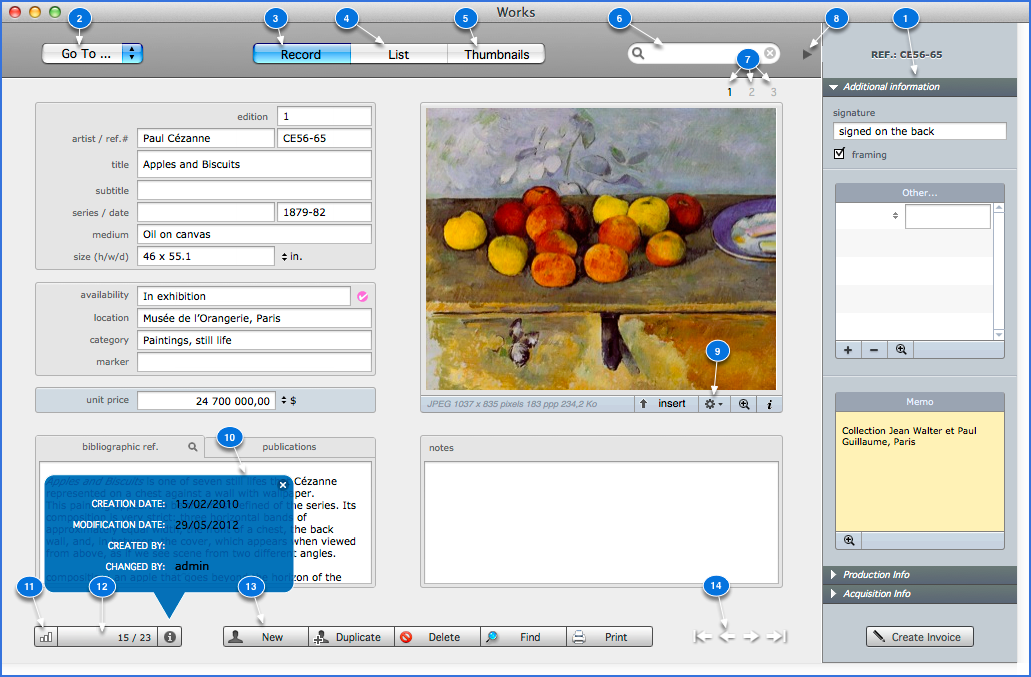
- "Accordion" tabs that can be shown or hidden.
- Drop down menu to switch quickly between modules.
- Display data by record (one record at a time).
- Display records as list. This mode allows you to sort records by clicking on field labels on the top of the list (available for certain modules).
- Display records as thumbnails.
- Quick search field.
- Clickable tabs.
- Button to show or hide the sidebar.
- Drop down local menu Choose Action.
- Info panel accessible only from the record mode.
- Sorting button.
- Show all records button. If this icon
 is visible, the records are not displayed in their totality (for example, after a search operation). Display 1/4 (see image below) means that you visualize the 1st record from 4 found records. 15/23 (see figure above) means that you are visualizing the 15th record for a total of 23 records. 15 is a position number that changes according to sort.

- Labelled buttons. Their functions are indicated on the labels.
- Buttons to navigate between records.
Menu bar
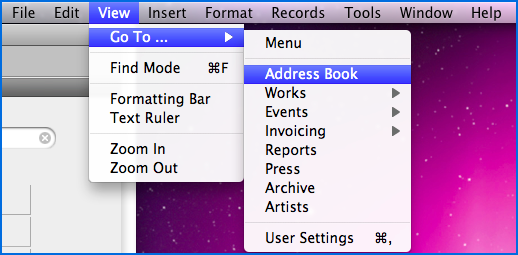
You can also navigate between modules or records using View menu or Records menu from the menu bar.
Linked Records
Most modules contain related records from other modules. For example, in Address Book, you will find under Invoices tab , all invoices related to a contact. To view an invoice, double-click the invoice row. In Invoicing, double-click the work image to displays it in the Works module.