Access user settings
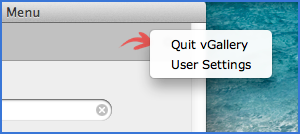
To access the User Settings panel from the main menu, click the popup menu Choose Action and select User Settings (see figure below) or choose View -> Go to -> User Settings from the menu bar.
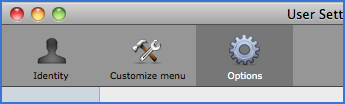
The User Settings panel allows you to access three tabs: Identity, Customize Menu and Options (see figure below).
Identity
Here you customize your contact information and other information about your company. This information appears in the print templates, such as letters or invoices. It is possible to create more than one identity with, for each of them, different preferences, by selecting New Identity in the drop-down menuChoose Action. vGallery checks when it starts the number of identities and if more than one identity is found, it will prompts you to choose the right one.
The information you type in Company, Street, Zip code, etc. are shown in Preview field, which is just below. This field is directly editable allowing you greater freedom of arrangement. If this field contains styled text (custom fonts, style or font size), it will be reflected in the print templates, except for customizable templates that must be changed directly.
Letterhead and Footnote are designed to receive images or PDF documents. The letterhead will appear in print headers occupying an area of 595 (width) x 90 (high) px on an A4 sheet and of 612 x 90 px on an US Letter. If the size of the inserted image is different from the header area, the image will be aligned at the top left. Footnote occupies an area of 595 x 100 px on an A4 page or 612 x 100 px on an US Letter. We recommend that you ask your designers to create these documents in vector format and provide them to you in PDF *.
* Some image editing softwares such as Photoshop, are able to export in PDF format. Under Mac Os X, you can create a PDF from almost any application that can print. Simply select File -> Print then click the pop-up PDF button and select Save as PDF.... Under Windows, a free software like PDF Creator can be used the same way.
Pdf created from vector files (Adobe Illustrator, CorelDraw, etc.) is the one that works better in print.
You can choose to enable or disable Letterhead and Footnote in the print templates by checking or unchecking the respective checkboxes  .
.
Customize the main menu
Menus can be arranged according to your preferences or be hidden if the modules are rarely or never used.
- On the left side you can see all available menus. On the right, the order of their display in the main menu.
- Drag and drop menus from the left to the location of your choice in the right side. The main menu reflects instantly the change you made.
- If you want to return to original menus order, click the
 Restore default menu set button.
Very important: Certain buttons are not labelled. To know its functions, place cursor above to display tooltips. You can enable or disable tooltips via User Settings -> Options -> General.
Options Tab
General
This panel includes general preferences that may concern several modules at once:
- Enable tooltips - Enable or disable tooltips accompanying the various buttons.
- Enable backup reminders - Enable, disable or sets the frequency of reminders to save the file containing the data.
- Thousands separator - If Default is selected, the thousands separator chosen should be that of your operating system.
- Decimal separator - If Default is selected, the decimal separator chosen should be that of your operating system.
- Currency by default - Defines the currency entered automatically in a new record.
- Place the symbol of the currency before or after the number - Example: €50 or 50€.
- Tax Name - Enter the acronym tax for your country.
- Length Unit - The length unit by default.
- Paper Size - The paper size by default. The option Manage Custom Sizes... will give you access to the configuration of your printer.
- Send E-Mail Via
- When E-Mail Client is selected, messages are sent through your default e-mail software (Apple Mail, Microsoft Outlook, Thunderbird, etc.), if it is configured correctly.
- Selecting SMTP Server allows you to send messages directly from vGallery. You can get the SMTP configuration settings from your ISP. Generally, the SMTP server name is composed as follows: smtp.your_ISP.extension domain of the country.
Very important: When vGallery is shared over a network, some preferences are saved only for the current session, including printing options. For these options to be saved beyond, set them on the computer running vGallery as a server. If your vGallery is hosted on our server, ask us to do so.
Address Book, Works and Invoicing
Options concerning these three modules will be featured in their respective chapters.
Update notification
vGallery can automatically search for software updates. If you want to enable this option, mark Automatically check for available downloads check box. If an update is available, the Update Notification dialog box will be displayed allowing you to download the update file.