Printing
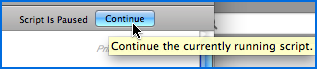
When you click the Print button, the module on which you work switch to preview mode; you see the layout as it appears on the printed page. To continue, press Enter (Windows) or Return (Mac OS) key or click the Continue button on the left of the preview window (see figure 1 below). The following window that appears (your system print dialog window) allows you to continue or cancel printing. If you cancel, vGallery returns to the module you worked on.
Differences between Record mode and List mode.
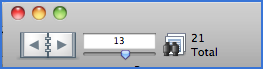
In some modules (Address Book, Archive, Works), when you click the Print button in Record mode (see Display modes), only the current record is printed. If you print from List mode, all found records will be printed. To know the number of pages to print, click the book icon (see figure 2 below).
Print options
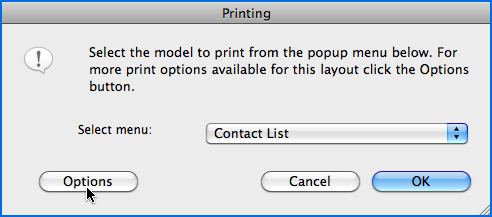
You can reach print options in the User Settings panel, (in the Options tab). If you print from Address Book or Works, you can modify print options via the Printing dialog box (see figure below).
Custom print templates
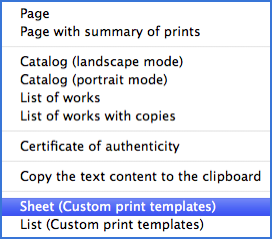
The modules Address Book, Works, Invoicing and Events include customizable print templates (the last two templates in the image below). If you are a licensed user, we take care to adapt these models to your needs to your specifications (Word or PDF models are recommended) as well as create new ones.
If you are sharing vGallery via a local network, printing custom print templates can be long, particularly with a large number of records, the images in a large size, and/or if you are using Wi-Fi connection. To stop printing in progress, press simultaneously the Cmd +. (dot) keys on Mac or Esc if you work under Windows.