Finding records
Quick find
All main windows in vGallery are equipped with a quick find field. To find, for example, a record corresponding to a contact from your Address Book, just type a few characters of its name, or other data. The program shows results as you type.

Advanced search
To find records that match one or multiple criteria (the value or values to find), use Find button or keyboard shortcut Ctrl+F (Windows) or Apple*+F (Mac Os). vGallery will switch in Find mode. All the fields that you usually use to enter information become research fields.
* If you work on an Apple computer, the Apple key, also known as Command, is third button at the bottom left of the keyboard. On previous keyboards an apple was drawn on this key, on recent models apple has been replaced by initials cmd.
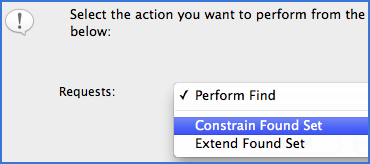
Very important : If you valid the search action with the Alt key pressed, a dialog box will allow you to refine the search result (see figure below).
Perform Find - performs a standard search in all records.
Constrain Found Set - constrains the search result to the found set of records.
Extend Found Set - constrains the search result to omitted records by previous research and adds the result to all the records already found.
In Works, by clicking the Find button with the Alt key pressed, a dialog box prompts you to select the module concerned with the search: Works, Editions or Reports.
Examples of search by multi-criteria
Imagine that you must print all available works of an artist.
- Activate Works.
- Click the Find button. Its label turns red to indicate that you are in Find mode.
- Type the name of the artist in the Artist field and "available" under Availability.
- Confirm by pressing Enter (Windows) or Return (Mac Os) key, or click Find again. Records corresponding to these criteria will be displayed.
- If you want to display all records, click Show all records (see figure below), go to Records -> Show all records on the menu bar, or press Ctrl+J (Windows) or Apple+J (Mac Os).

Examples of advanced multi-criteria research
Imagine once again that you have to find the available works made before 2001.
- Repeat steps 1, 2 and 3 from the previous example.
- In the field Date, enter ≤2001 (less or equal to 2001).
- Validate research. The works realized before and in 2001 which are available, should be displayed.
* Table of operators
To refine your search, do not hesitate to use symbols:
- < less than
- ≤ less than or equal
- > greater than
- ≥greater than or equal
- = exact match (used alone in multiple fields, can find empty records)
- ... range (to use for example between two dates; 2001 ... 2009)
- ! duplicates
- // today's date
- ? invalid date or time
- @ one character (can be used in case of doubt about word spelling)
- # one digit
- * zero or more characters (may be used alone to find records which selected field contains information)
- "" literal text
- ~ relaxed search
- == field content match
Save a search result via Snapshot* links
To avoid repeating the same complex queries whose results may be useful afterwards to yourself or to other users, you can use the menu File -> Send Snapshot Link.
The purpose of this action is to save a set of records as a separate file in FMPSL format. This file keeps the order and the number of records in use in the active window.
If a record has been deleted or modified, the Snapshot Link can not restore it.
While saving the file, Snapshot Link propose to send it by e-mail, via the option Create email with file as attachment.
Before opening a snapshot link (to restore a given set of records), you need to enable the recption of snapshot links via the menu File -> Send -> Enable receipt of Snapshot Links. This operation should be performed at each session of vGallery.
* FileMaker Pro is required. This menu is unavailable in standalone versions of vGallery.